
Online Keyboard Shortcuts
OnlineShortcuts.com provides a comprehensive, searchable reference of essential keyboard shortcuts for Windows, macOS, and Linux to boost.
Visit
About Online Keyboard Shortcuts
Online Keyboard Shortcuts, available at OnlineShortcuts.com, is a comprehensive, free, and ad-free reference guide designed to help users master keyboard shortcuts across the three major operating systems: Windows, macOS, and Linux. The core purpose of this tool is to eliminate the friction of navigating software and system functions by providing a centralized, easy-to-browse collection of the most important key combinations. A keyboard shortcut, defined as a combination of keys that performs a specific task, allows users to execute commands faster and more efficiently while significantly reducing dependency on a mouse or trackpad. This product is for anyone who uses a computer regularly, from casual home users and students to professional developers, designers, and office workers seeking to boost their daily productivity. The main value proposition lies in its simplicity and breadth, offering a curated list of system-wide shortcuts, operating system-specific key combinations (like those using the Windows key or Command key), and application-specific shortcuts for common tools like File Explorer, Command Prompt, and web browsers. Beyond the live web interface, the product enhances its utility by offering downloadable cheat sheets in PDF and PNG formats, allowing users to keep a physical or digital reference handy. The website is designed to be fully responsive, ensuring accessibility on mobile devices, tablets, and desktops, making it a reliable resource for learning and reinforcing efficient computer habits. By consolidating essential shortcuts into one trustworthy location, Online Keyboard Shortcuts serves as a practical tool for anyone looking to streamline their workflow and interact with their computer with greater speed and precision.
Features of Online Keyboard Shortcuts
Comprehensive Operating System Coverage
The platform provides a curated collection of keyboard shortcuts for Windows, macOS, and Linux, all organized into clear, separate categories. This feature ensures that users can quickly find the specific key combinations relevant to their operating system without having to sift through irrelevant information. It covers fundamental system-wide commands, such as closing windows, switching applications, and accessing system settings, as well as more specialized shortcuts for power users.
Downloadable Cheat Sheets
Users can download the entire collection of keyboard shortcuts as a handy PDF file or as PNG images in both dark and light themes. This feature allows for offline access and easy printing, enabling users to keep a physical reference card on their desk or a digital copy on their mobile device. The availability of multiple formats ensures that the information is accessible in any work environment or personal preference.
Application-Specific Shortcut Libraries
Beyond system-wide commands, the website includes dedicated sections for popular applications such as Command Prompt, File Explorer, and Web Browsers. This feature provides targeted productivity boosts by listing shortcuts for tasks like text editing, file management, tab navigation, and virtual desktop management. It transforms the resource from a general guide into a practical tool for daily software use.
Responsive and Accessible Web Design
The website is built to be fully responsive, ensuring that the keyboard shortcut lists are easily viewable and navigable on any device, including smartphones, tablets, and desktop monitors. This accessibility means users can quickly reference a shortcut while working on their main computer or learn new ones on the go. The clean, ad-free interface prioritizes user experience and information clarity.
Use Cases of Online Keyboard Shortcuts
Boosting Daily Productivity for Office Workers
Office professionals who spend significant time in applications like word processors, spreadsheets, and email clients can use this resource to learn shortcuts for common tasks. By memorizing combinations like Ctrl+C for copy, Ctrl+V for paste, and Alt+Tab for switching windows, users can dramatically reduce the time spent navigating menus with a mouse. This efficiency gain leads to faster document creation, smoother multitasking, and a more fluid workflow throughout the workday.
Learning Efficient Navigation for New Computer Users
Individuals who are new to a particular operating system, such as someone switching from Windows to macOS, can use the site as a quick reference to learn the new key combinations. The clear categorization by OS allows them to focus on the specific shortcuts they need to master, such as using the Command key instead of Ctrl. This accelerates their learning curve and helps them become proficient with their new system more quickly.
Enhancing Developer and Power User Workflows
Developers, system administrators, and other power users who rely on command-line interfaces and rapid system navigation will find the application-specific shortcuts invaluable. For example, using Win+X to access the Power User menu or Ctrl+Shift+Esc to open Task Manager directly saves critical time. The site also supports virtual desktop workflows with shortcuts like Win+Ctrl+D to create new desktops, enabling advanced multitasking setups.
Creating Personal Reference Materials for Training
Trainers, educators, and team leads can use the downloadable cheat sheets to create standardized reference materials for their teams or students. By providing PDF or PNG files, they can ensure everyone has access to the same set of essential shortcuts, promoting consistent and efficient computer usage across an organization. This use case is particularly effective for onboarding new employees or conducting productivity workshops.
Frequently Asked Questions
What is Online Keyboard Shortcuts?
Online Keyboard Shortcuts, hosted at OnlineShortcuts.com, is a comprehensive, free, and ad-free guide that lists the most important keyboard shortcuts for Windows, macOS, and Linux operating systems. It is designed to help users improve their productivity by providing quick and easy access to commonly used commands and hotkeys, reducing reliance on the mouse for faster computer interaction.
How do I use Online Keyboard Shortcuts?
To use the resource, simply visit the website and browse the categorized lists of shortcuts for your operating system or specific application. You can find shortcuts for system-wide tasks, application-specific functions, and text editing. If you need offline access, you can download the entire collection as a PDF or PNG image file from the provided download buttons.
Are the keyboard shortcuts updated regularly?
The shortcuts are curated to be as accurate as possible for the specified software versions. However, software updates from Microsoft, Apple, or Linux distributions can sometimes change hotkeys. While the site aims to maintain accuracy, it is always good practice to verify a shortcut with the specific version of the software you are running if you encounter issues.
Is there a mobile version of the site?
Yes, the website is designed to be fully responsive and accessible on all devices. You can view the keyboard shortcut cheat sheets on mobile phones, tablets, and desktop computers. The layout automatically adjusts to your screen size, ensuring a smooth and readable experience regardless of the device you are using.
Explore more in this category:
Similar to Online Keyboard Shortcuts

tallycounterweb.com
Online tally counter for tracking attendance, workouts, inventory, visitors, sports scores, habits, and everyday counting tasks.

iHatePosting
Social media scheduler to create once, customize per platform, and publish across 14 networks from one dashboard.
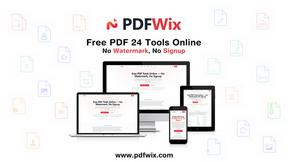
PDFWix
PDFWix is a free online PDF toolkit designed to make everyday PDF tasks simple, fast, and private.
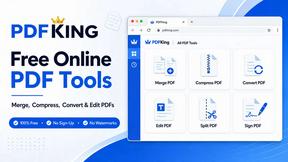
PDFKing
Free online PDF tools to merge, compress, convert, edit, sign, and manage documents—no signup, watermarks, or daily limits.


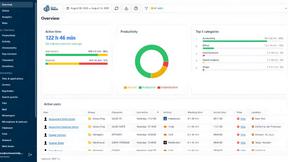
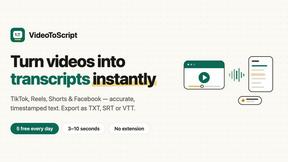
VideoToScript
Turn TikTok, Reels, Shorts, Facebook videos, audio, and video into accurate timestamped transcripts with TXT, SRT, and VTT exports.